Florlist Florlist University

Learn to sell your stems, the modern way

Free, screenshot-rich courses for flower farmers and the florists who buy from them. Written plainly, about how the farm-to-florist business actually works.

Flower Farmer Program

Everything involved in running your farm on Florlist, from your first listing to charging a card without a second thought. Eleven short lessons, each with real screenshots. Free, and worth taking slowly.

Lesson 1 · 3 min read

Welcome to Florlist

Florlist gives your farm a storefront of its own. Local florists visit your page, see what you have this week with photos and prices, and place orders. There are no text message chains to manage and no spreadsheet to email around. You post your availability once, and the page stays current on its own.

Your page lives at its own address, something like meadowstem.florlist.com. Share it in an email, print it on a card, or let florists find you on the Florlist map. Everything about it is managed from the dashboard sidebar:

  • Flowers: your catalog, and what is available right now.
  • Planner: a week-by-week view of what is coming.
  • Orders: where florist orders arrive for you to confirm and fulfill.
  • Cut List: what to cut this week, gathered across your open orders.
  • Messages: direct conversations with your florists.
  • Appearance: how your page looks. Theme, hero image, your story.
  • Florists & Access: your relationships, per-florist pricing, and page privacy.
  • Subscribers: your email list, and the weekly update that sends itself.

And the question every farmer asks first: yes, Florlist is free. There is no subscription, no listing fee, and no commission on orders you collect payment for yourself. The only costs anywhere are optional ones, and each is explained plainly before you spend anything.
Tip The lessons build on each other, so the first read is best in order. After that, come back to any of them whenever a question comes up.
Lesson 2 · 5 min read

Your Catalog and This Week

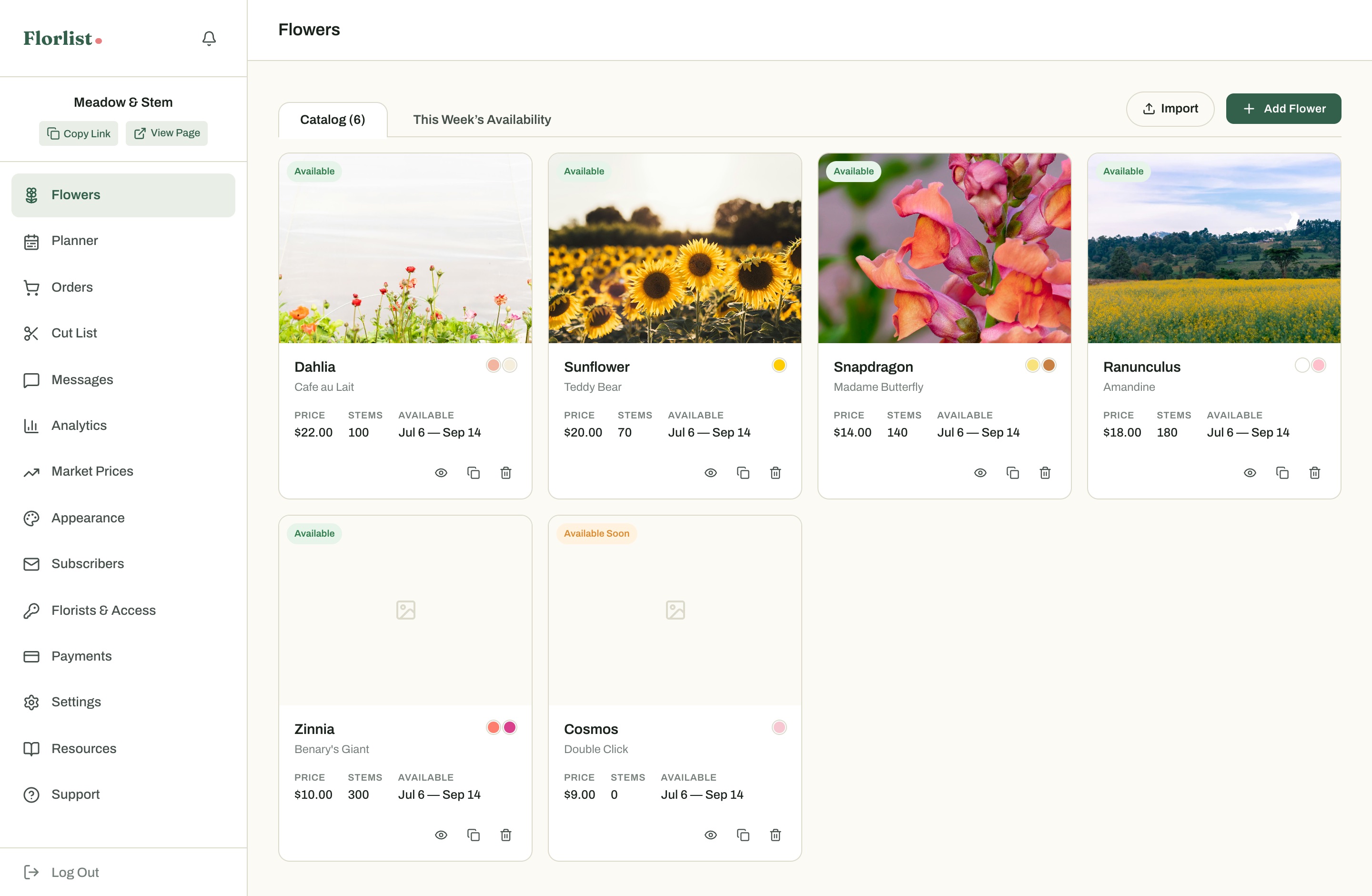
The Flowers page has two tabs, and they answer two different questions. Catalog answers what you grow: every flower, with photos, variety names, colors, stem length, and a description. This Week's Availability answers what florists can order right now, with live stem counts and prices.

The Flowers catalog with flower cards
The catalog is your reference library. Add each flower once, with its best photo.

Adding a flower is a short, guided form: the basics, details like colors and stem length, the season you expect, and a photo. Colors become real swatches, so a blush Cafe au Lait shows as an actual blush dot on your page. If you have listed a flower before, you can start from the previous listing and let everything fill itself in.

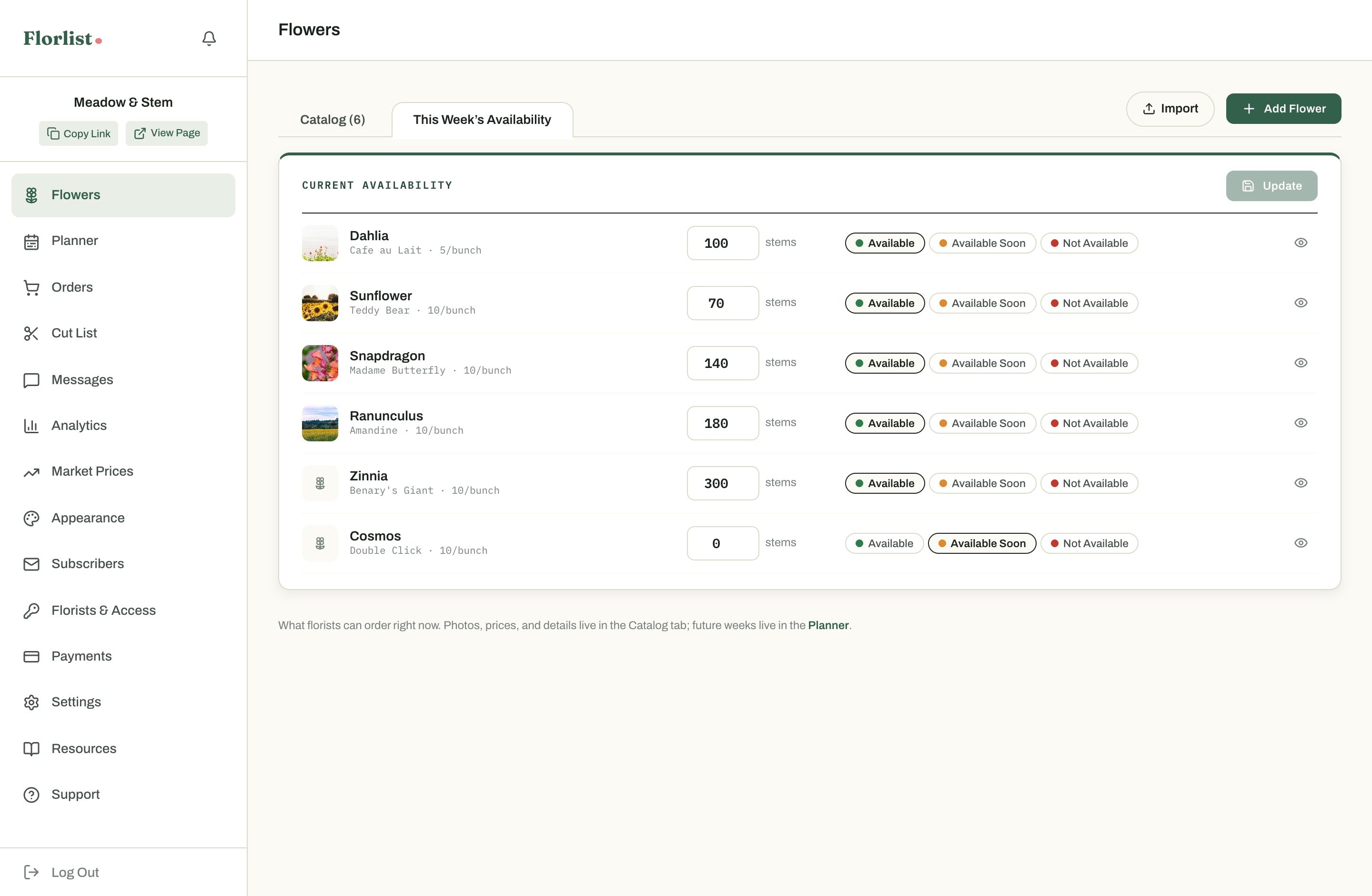
This Week's Availability tab with live stem counts
This Week's Availability is what florists can order. With inventory control on, you cannot oversell.
  • Inventory control is on by default. Each order subtracts stems automatically, and a flower shows as sold out when it reaches zero.
  • Prices are per bunch. Set the bunch size for each flower, and the per-stem math is handled for you everywhere it appears.
  • A flower can live in your catalog without being available this week. That is normal, and the Planner takes care of the future.
Try it Add your three best sellers, each with one good photo. Three well-photographed listings will do more for your page than thirty hurried ones.
Lesson 3 · 6 min read

The Planner

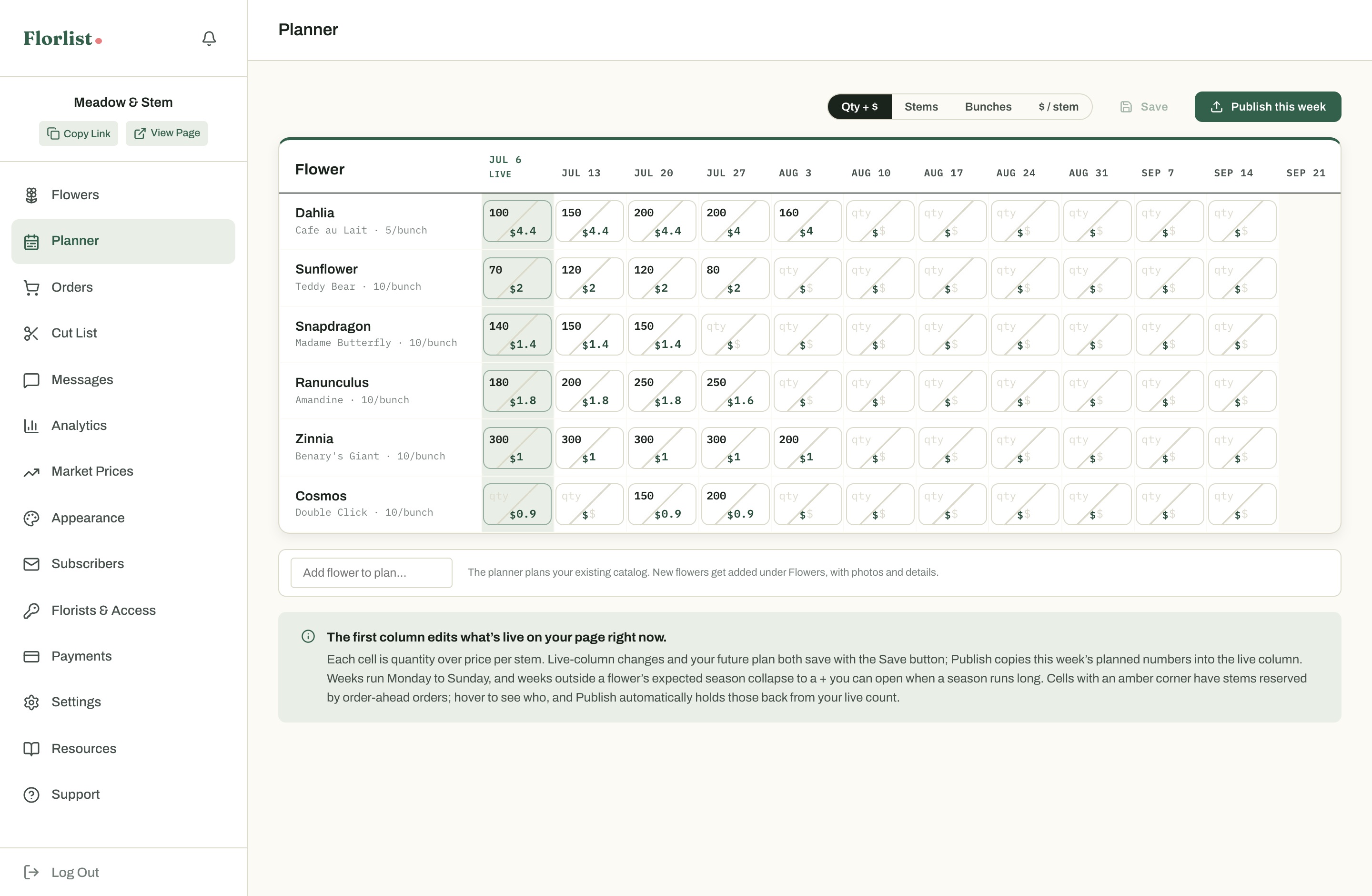
The Planner puts your season on one screen. Rows are flowers, columns are weeks, Monday to Sunday. Each cell holds a quantity and a per-stem price, split corner to corner so you can read both at a glance.

The weekly planner spreadsheet with split quantity and price cells
The first column is live on your page right now. Everything to the right is your plan.
  • The live column edits what florists see today. Change it and save.
  • Future weeks are your working plan. Florists can see them on your availability calendar, clearly marked as tentative.
  • When a new week arrives, Publish this week copies your plan into the live column. One click, usually on a Monday morning.
  • Weeks outside a flower's expected season fold away into a small +. Open one when a season runs long, and remove it again if you change your mind.
  • A cell with an amber corner has stems reserved by order-ahead. Hover to see whose they are. Publishing holds those stems back automatically.

If you turn on order-ahead in Settings, florists can order from your future weeks directly, at that week's price. This matters most for weddings: a florist can reserve your Cafe au Laits in July for a September date, and you know part of that week is spoken for before you cut a single stem.

Tip Set per-week prices when supply swings. Early season dahlias at $4.40 a stem can ease to $4.00 by late August, and checkout charges whichever week the florist books.
Lesson 4 · 5 min read

Your Page and Its Look

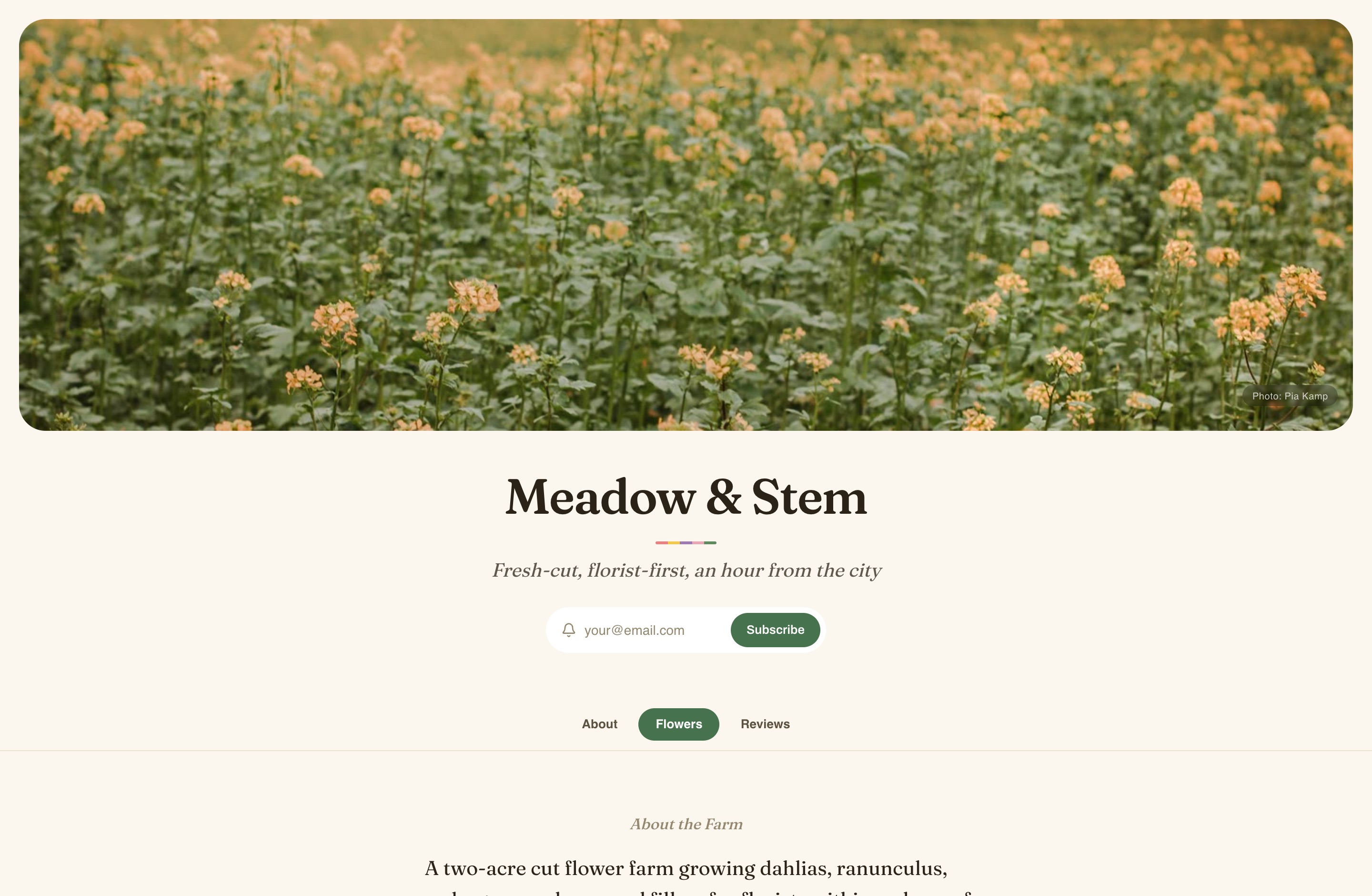
Appearance controls how your storefront feels. There are three themes: Garden is warm and rounded, Minimal is clean and gallery-like, and Editorial reads like a magazine cover. From there, make it yours with a hero image, a palette, and your own section titles.

A farm storefront in the Garden theme
The Garden theme with one of the built-in hero images.
The rest is yours with a free account

This lesson continues in your dashboard, along with the 7 after it and your Bachelor of Blooms diploma. Free, always.

Create free account

Florist Program

How to source local, seasonal, and fresher than the wholesaler, with every farm you buy from in one place. Six short lessons with real screenshots. Free, always.

Lesson 1 · 3 min read

Why a Florist Account

You can order from any public Florlist farm as a guest. A free florist account is what makes it a working relationship: every farm you buy from in one dashboard, your order history across all of them, direct messages with the growers, and any special pricing a farm has set for you, applied automatically.

  • My Farms: every farm you follow, one click from their page.
  • Browse Flowers: everything your farms have, combined and searchable, week by week.
  • Orders: your history across every farm, with live statuses.
  • Messages: a direct line to each of your growers.

Farms also see your shop's name on orders instead of an unfamiliar email address, and that recognition is usually where the good pricing begins.

Lesson 2 · 4 min read

Finding and Following Farms

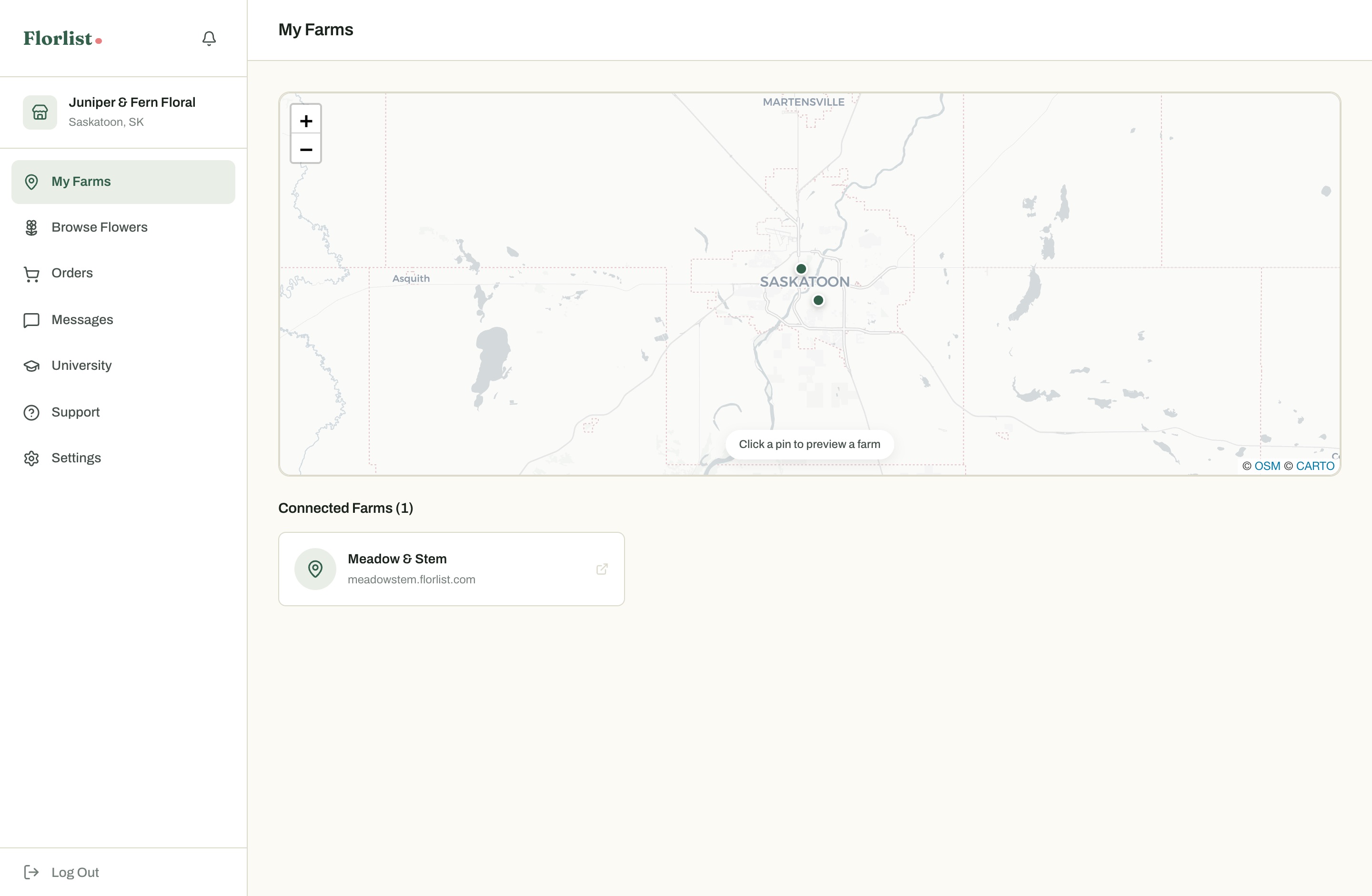
Following a farm connects you to it: their flowers join your browsing view, their weekly availability reaches you, and any per-shop pricing they have set for you applies at checkout. On a public farm page, Follow connects you instantly. On a private one, the same button sends a request for the farmer to approve.

The My Farms list in the florist dashboard
Your farms and your relationships. Farms can set custom pricing for shops they know well.
  • Find farms on the Florlist map, or follow the link a farmer hands you at the market.
  • Waiting on approval from a private farm? If they gave you their page password, it works for browsing in the meantime.
  • Subscribe on a farm's page and their availability email arrives every week they publish.
Lesson 3 · 5 min read

Browse Flowers, by Week

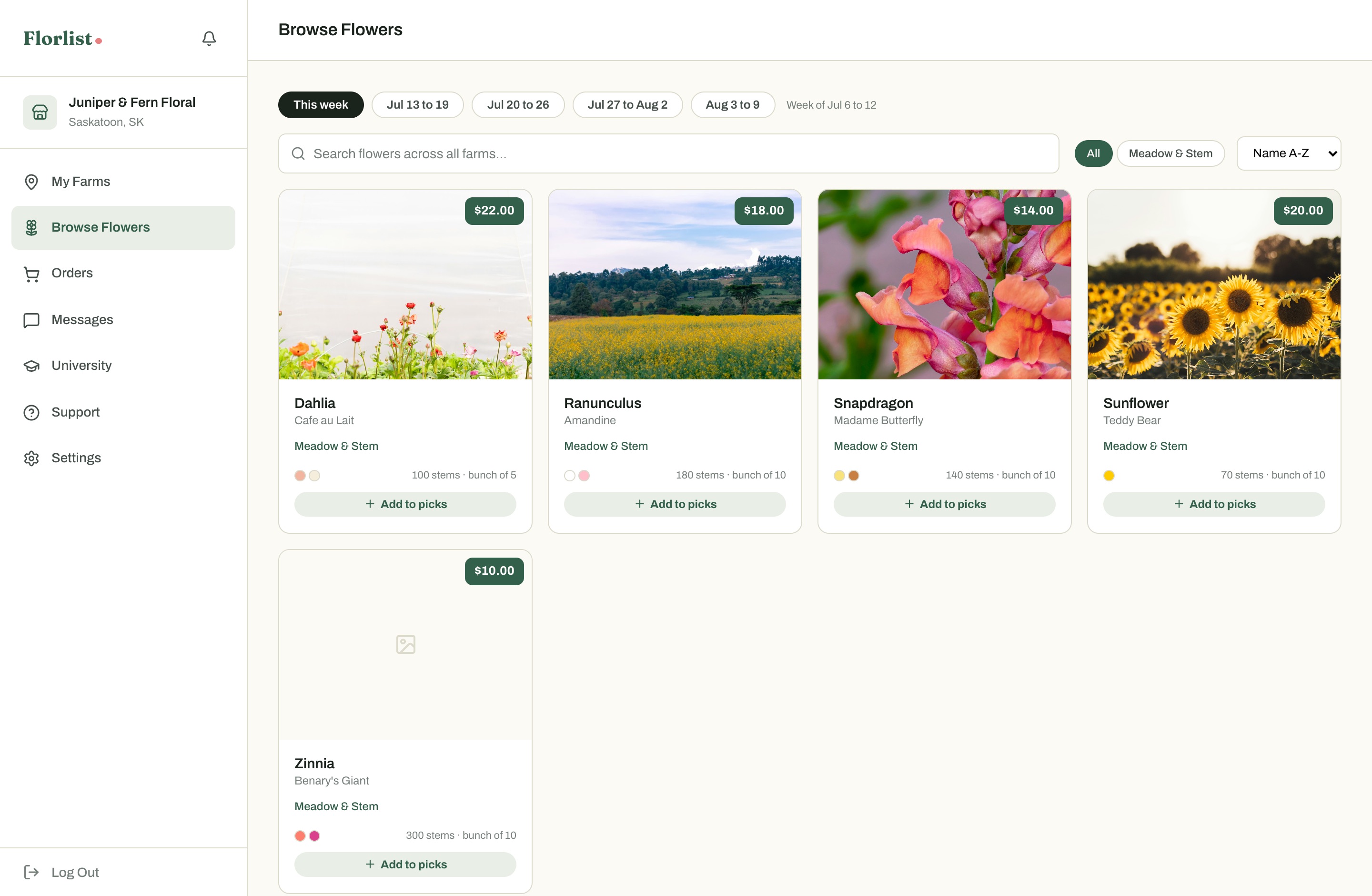
Browse Flowers is your combined market: every flower from every farm you follow, searchable and sortable in one place. The week pills across the top are the heart of it. This week shows live availability, and the four weeks after show what farms with order-ahead have planned, priced for that week.

Browse Flowers with week pills and flower cards from multiple farms
One view across farms. Switch weeks to plan around events rather than around hope.
The rest is yours with a free account

This lesson continues in your dashboard, along with the 3 after it and your Master of Arrangements diploma. Free, always.

Create free account